Minecraft is all about spending hours building and customizing worlds. Losing that progress due to a phone crash, accidental deletion, or update can be frustrating. The best solution is to create a backup. This guide explains how to back up your Minecraft worlds and account without data loss.
Why Should You Back Up Minecraft?
You invest time and effort in building and exploring. Losing that progress is stressful. A backup helps you avoid this stress.
- Protects Your World: Backup saves your world and progress if your phone breaks or the game is deleted accidentally.
- Avoid Data Loss: Updates or game crashes can cause data loss. A backup helps you avoid this.
- Keep Your Custom Settings: Backing up saves your game controls, resources, and preferences.
What Files and Data Should You Back Up?
Save these files and folders to keep your worlds and progress safe:
- Minecraft Worlds: Your buildings and creations.
- Resource Packs: Custom textures and sounds.
- Behavior Packs: Add-ons that change game behavior.
- Minecraft APK: The game file itself.
- Minecraft Account Info: Keep your account details safe and remember them.
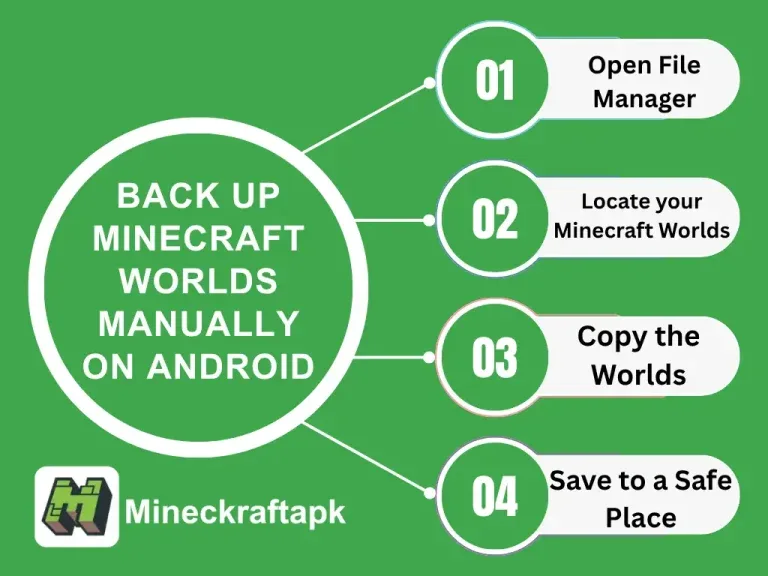
How to Back Up Minecraft Worlds Manually on Android
This is the easiest way to back up Minecraft worlds:
1. Open File Manager: Use your device's file manager to find world files.
2. Locate your Minecraft Worlds: Navigate to Internal Storage > games > com.mojang > minecraftWorlds.
3. Copy the Worlds: Select the complete world folder and copy it.
4. Save to a Safe Place: Save the copied folder to an SD card, USB drive, PC folder, or cloud storage.
Backup Apps
Backup apps can automatically create backups for your game. Recommended apps include:
- Helium Backup
- Titanium Backup
- Google Drive Backup
Steps to Use Backup Apps:
1. Download and install a recommended backup app.
2. Allow the necessary permissions.
3. Explore the app list and select Minecraft to create a backup.
4. Select the folder to save your backup.
5. Wait for the backup process to complete.
How to Back Up Minecraft Worlds Using Your PC
This is a safe and organized way to save your worlds:
1. Connect Your Phone to PC: Use a USB cable and enable File Transfer (MTP) mode.
2. Locate Minecraft Worlds: Open File Explorer on your PC and find the Minecraft Worlds files.
3. Copy the Worlds: Copy all folders containing Minecraft Worlds files.
4. Paste to PC: Choose a destination folder and paste the copied folders. This creates a backup on your PC.
Back Up Your Minecraft APK Account
To keep the same version with custom changes, back up the whole Minecraft APK. This saves the app file on your phone.
Steps to Backup Your APK:
1. Download an APK extractor like ML Manager or APK Extractor.
2. Open the extractor app and locate Minecraft in the app list.
3. Click on Extract the APK file.
4. Move the Minecraft APK file to a storage place like a PC, cloud storage, or USB drive.
5. Rename the APK file for clarity.
How to Recover Minecraft Worlds from Backup
1. Locate Your Backup: Find the folder where you saved the Minecraft backup files.
2. Connect Your Phone (if using PC): If recovering from a PC, connect your phone to the PC.
3. Open Minecraft Worlds Folder: Search and open the Minecraft Worlds folder from storage.
4. Copy Your Worlds Back: Copy your required world folders and paste them into the Minecraft Worlds folder.
5. Check Minecraft: Open Minecraft to check your recovered worlds.
Conclusion
Backing up your Minecraft worlds is the best way to save your hard work. Backups help if your game crashes or you lose your phone. They let you continue with the same progress and settings. You can create backups manually, use backup apps, or keep them safe on a PC or cloud storage. These methods help you enjoy Minecraft without worrying about losing your world progress.
How to Back Up Your Minecraft APK Account and Worlds
Learn how to back up your Minecraft worlds, resource packs, behavior packs, and APK on Android. Protect your progress from crashes, deletions, or updates with manual methods, backup apps, or PC transfers.
Published 2025-07-08