Minecraft is a simulation-based game that enhances creativity. High-quality graphics can help you design your imaginary world, and the resolution of a game determines its in-game visual quality and affects performance. Minecraft Java Edition and Bedrock Edition both offer different game resolutions for different devices. To enhance graphics and game visuals, you can change the Minecraft resolution. This article summarizes the best ways to do so and helps you set your desired resolution for a better gameplay experience.
Overview
Resolution is associated with the graphics quality of a game or device. Higher resolution means high-quality graphics. In Minecraft, players need to visualize game contents clearly, so a high resolution can improve gameplay and performance. You can change it using multiple methods like Java arguments, the Minecraft launcher, and third-party software. First, know the available game resolutions:
- Standard HD: 720p (1280×720)
- Full HD: 1080p (1920×1080)
- 4K: 1440p (2560×1440)
Ways to Change Minecraft Resolution
The steps vary between Minecraft editions. Here are the methods for each edition.
Minecraft Java Edition
The Java edition is mainly designed for the PC version. Since PCs offer a wide range of resolutions, you can configure and change the game resolution according to your requirements. Follow these methods to build your world with HD graphics and smooth gameplay.
Java Arguments
Java arguments allow you to set custom resolutions. Steps:
1. Download and install the Minecraft Launcher.
2. Open it and visit the “Installation” tab.
3. Select your game version.
4. Click on the “JVM Arguments” tab.
5. An editable section will open.
6. Here, you can change the resolution.
7. Enter your required resolution and enjoy the game.
Using Screen Method
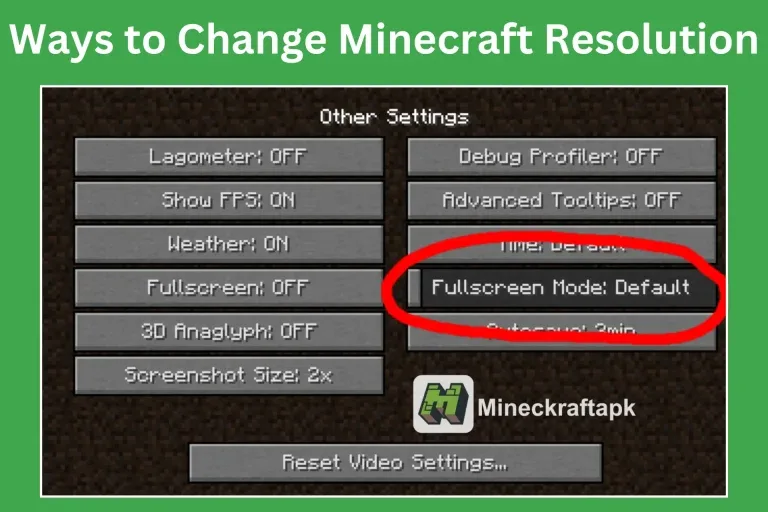
This is the best and simplest way to change the screen resolution in the Java edition. Steps:
1. Open the Minecraft game.
2. Click on Video Settings from the main menu.
3. Enable full screen and choose the most suitable resolution for your device.
Using Third-party Tools
Some third-party tools are available for customizing Minecraft resolution. Examples include:
- OptiFine
- Badlion Client
- MultiMC
- Minecraft Tweaker
These tools help players acquire the desired resolution for an enhanced and smooth gameplay experience. Generic steps:
1. Download any of these third-party tools and launch it in Minecraft.
2. Explore the video settings.
3. Click on the resolution settings tab.
4. Adjust the resolution.
Minecraft Bedrock Edition
This is the latest version of Minecraft. It is available on different types of devices like mobiles, PC, and gaming consoles. For every device, the resolution varies and has a different impact. The method to change the Bedrock resolution is not the same as for the Java Edition. Steps:
1. Open and launch the game.
2. Log in to your Minecraft account.
3. Click the Settings tab and go to Video settings.
4. In the Video settings tab, search for the Render Distance option.
5. Click on Graphics options, and choose the resolution.
6. You can select low, medium, or high resolution according to your needs.
7. Once changes are done, save the settings and enjoy the game.
Minecraft Console Edition
This edition is specifically designed for Xbox and PlayStation users. Steps:
1. Open the Minecraft game on the console.
2. Click on Settings and go to Video Settings.
3. From video settings, tap on Resolution.
4. Set the resolution up to 1080p for clear and enhanced graphics visuals.
Pros and Cons for Changing Resolution
Pros:
- Enhanced and high-quality graphics
- Customization of screen size offers better gameplay
- Improves the clarity of game contents and items
- Offers clear and enhanced visual of texture packs
Cons:
- High resolution may cause lag in the game
- Can cause drainage of a battery of laptop or mobile devices
- May not be suitable for a slow device
- A high GUI card is required
Conclusion
Resolution is the most important factor in in-game visuals. It affects game performance. Minecraft is a game of blocks, so a high resolution is required for the best visuals. The resolution varies between devices, so you must set it according to your device’s requirements. In Minecraft, you can change the resolution by using different methods like screen settings, Java arguments, the Minecraft launcher, and third-party tools. This article provides all the details about these methods. Now you can set the Minecraft resolution easily to improve your game visuals and enjoy smooth gameplay.
FAQs
Can I change the resolution while playing the game?
Yes, you can easily change the resolution while playing the game. You can set the resolution in the video settings.
Which third-party tools are available for custom resolution settings?
There are many tools like OptiFine, Badlion Client, and Minecraft Tweaker available for this purpose.
Will changing the resolution affect my game performance?
For low-end devices, it may affect the performance of the game.
What are the best ways of changing Minecraft resolution in Java Edition?
In Java edition, you can easily change the resolution by using Java arguments, third-party tools, or simply adjusting the screen resolution from video settings.
What will happen if I set the resolution to be bigger than my screen size?
The screen items will not be shown clearly, which may affect your game performance.
How to Change Minecraft Resolution: A Guide for Java, Bedrock, and Console Editions
Learn how to change Minecraft resolution on Java, Bedrock, and console editions. This guide covers available resolutions, step-by-step methods, and the pros and cons of adjusting your game's visual quality.
Published 2025-02-12